On this page
- Turn on the flashlight on an iPhone
- From the Lock Screen
- From Control Center
- Change the brightness and beam on iPhone
- With the Action button (iPhone 15 Pro and later)
- With Back Tap (any iPhone 8 or later)
- With Siri
- Turn on the flashlight on a Samsung Galaxy
- From Quick settings
- Double press the Side key
- With Bixby
- Turn on the flashlight on a Google Pixel
- From Quick Settings
- With Quick Tap (double tap the back)
- With Google Assistant or Gemini
- Flashlight greyed out or not working?
- Related
- FAQs
- How do I turn on the flashlight without unlocking my phone?
- How do I make my phone flashlight brighter?
- Why is my flashlight greyed out?
- Does using the flashlight drain the battery?
- How do I turn off the flashlight on iPhone?
- Can I turn on the flashlight by shaking my phone?
It is dark, you are fumbling for your keys, and you need light now. Here is the fastest way on each phone:
- iPhone: on the Lock Screen, press and hold the flashlight button at the bottom left. Or swipe down from the top right corner to open Control Center and tap the flashlight.
- Samsung Galaxy: swipe down from the top of the screen and tap Flashlight (some models call it Torch).
- Google Pixel: swipe down from the top of the screen and tap Flashlight.
- Any phone, hands full: say "Hey Siri, turn on the flashlight", "Hey Google, turn on the flashlight" or "Hi Bixby, turn on the flashlight".
That covers most people. Below are the faster tricks worth setting up once (a button press or a tap on the back of the phone), how to make the light brighter, and what to do when the flashlight button is greyed out.
Turn on the flashlight on an iPhone
From the Lock Screen
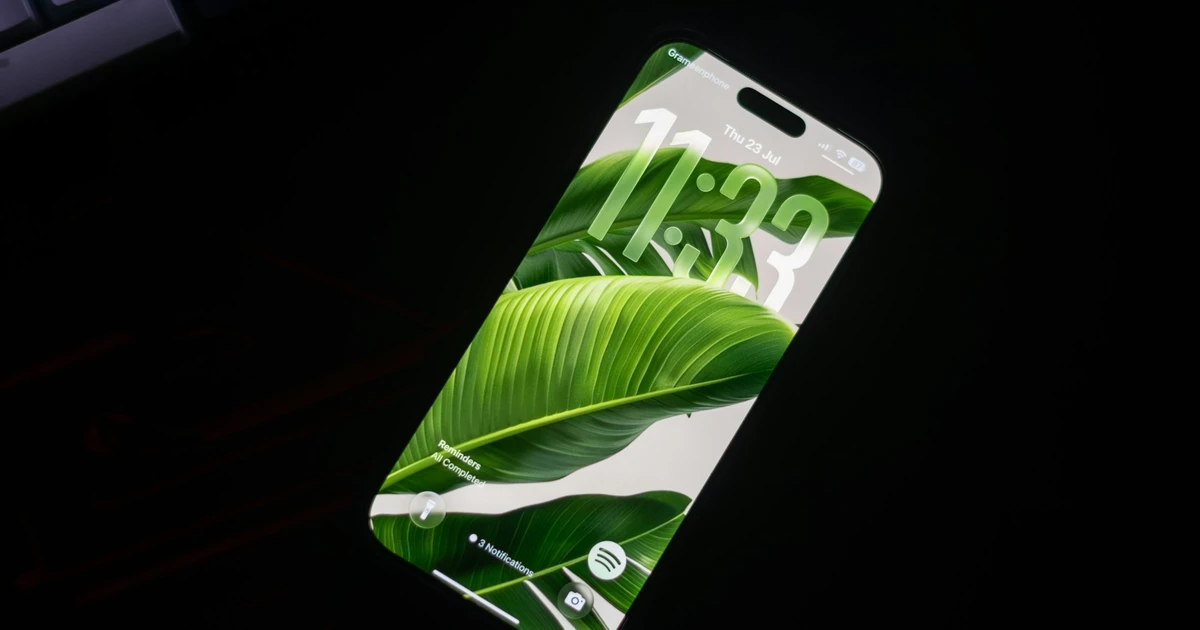
Every iPhone with Face ID has a flashlight button at the bottom left of the Lock Screen. Press and hold it (a light tap does nothing, which stops it turning on in your pocket) until you feel a tap. Press and hold again to turn it off.
You can swap this button for something else in Lock Screen customisation, so if it is missing, someone may have changed it.
From Control Center
- iPhone X and later: swipe down from the top right corner of the screen.
- iPhone SE and iPhone 8 or older: swipe up from the bottom edge.
Tap the flashlight icon. Tap it again to turn it off.
If the icon is missing, add it back: in Control Center, tap the + at the top left (or press and hold an empty area), tap Add a Control, and choose Flashlight.
Change the brightness and beam on iPhone
Press and hold the flashlight icon in Control Center. A tall slider appears: drag it up or down to set the brightness. The next time you turn the flashlight on, it remembers the level.
On iPhones with the Dynamic Island (iPhone 14 Pro and later, plus all iPhone 15, 16 and 17 models) running iOS 18 or later, there is a better control. When the flashlight is on, it appears in the Dynamic Island at the top. Swipe left or right to make the beam wider or narrower, and up or down to change brightness.
With the Action button (iPhone 15 Pro and later)
If you use the flashlight a lot, make it a button press:
- Open Settings > Action Button.
- Swipe through the options until you reach Flashlight.
Now pressing and holding the Action button on the left edge turns the flashlight on or off, even with the screen locked.
With Back Tap (any iPhone 8 or later)
Back Tap lets you double or triple tap the back of the phone to trigger an action. Flashlight is not in the default list, but a one-line Shortcut adds it:
- Open the Shortcuts app, tap +, and add the Set Flashlight action (set it to Toggle). Save it.
- Go to Settings > Accessibility > Touch > Back Tap.
- Pick Double Tap or Triple Tap and choose your new shortcut.
With Siri
Say "Hey Siri, turn on the flashlight" or "Siri, flashlight on". "Turn off the flashlight" switches it off. This works on the Lock Screen too.
Turn on the flashlight on a Samsung Galaxy
From Quick settings
- Swipe down from the top of the screen once to open the Quick panel.
- Tap Flashlight (or Torch). If you do not see it, swipe down again to show the full panel.
To turn it off, tap the tile again.
Brightness: press and hold the Flashlight label (or tap the words under the icon) to open a slider with levels from 1 to 5. Set it once, and it sticks.
Tile missing? In the full Quick panel, tap the pencil (Edit) icon and drag Flashlight back into the panel.
Double press the Side key
This is the one Samsung owners swear by once they set it up:
- Open Settings > Advanced features > Side button.
- Turn on Double press.
- Choose Open app, then pick Flashlight (or Torch) from the list. On older One UI versions, the flashlight may not be in the list, and you can use Bixby Routines instead.
Now two quick presses of the Side key turn the flashlight on, even with the screen off. Double press again to turn it off.
With Bixby
Say "Hi Bixby, turn on the flashlight". Bixby can also set brightness: "Set flashlight brightness to 5".
Turn on the flashlight on a Google Pixel
From Quick Settings
- Swipe down from the top of the screen once.
- Tap Flashlight. If you do not see it, swipe down a second time to show all the tiles.
Brightness: newer Pixels on recent Android versions let you change the flashlight's brightness. Press and hold the Flashlight tile (or tap its label) to open a slider. If nothing happens, your Pixel model or Android version does not support it yet.
Tile missing? Open the full Quick Settings panel, tap the pencil icon (Edit), and drag Flashlight into place.
With Quick Tap (double tap the back)
Pixel 4a (5G) and later can turn on the flashlight with a double tap on the back:
- Open Settings > System > Gestures > Quick Tap to start actions.
- Turn on Use Quick Tap.
- Choose Toggle flashlight.
If it fires by accident in your pocket, turn on Require stronger taps on the same screen. A thick case can stop it working at all, so test it with your case on.
With Google Assistant or Gemini
Say "Hey Google, turn on the flashlight". This works from the Lock Screen on most Pixels.
Flashlight greyed out or not working?
Work through these in order. The first three cover almost every case.
- Close the camera. The flashlight is the camera's flash LED. If the Camera app, a video call, or an app scanning a QR code is using the camera, the flashlight is blocked. Close the app fully (swipe it away from recent apps) and try again.
- Let the phone cool down. Phones disable the flash when they get hot, to protect the battery and the LED. Take it out of the sun or off the charger for a few minutes.
- Charge it. Low Power Mode on iPhone or Power saving on Android, and a very low battery, can disable the flashlight.
- Restart the phone. It clears a stuck camera service. See how to turn off any phone for the button combos.
- Check the camera. Open the Camera app and take a photo with the flash forced on. If the flash does not fire either, the LED or camera module is likely faulty, and that is a repair. If it works in the camera but not as a flashlight, update the phone's software.
On iPhone, a flashlight that will not turn on even after a restart can be covered by the standard one-year warranty or AppleCare+. Apple and Samsung can run diagnostics in store before quoting a repair.
Related
FAQs
How do I turn on the flashlight without unlocking my phone?
On iPhone, press and hold the flashlight button on the Lock Screen, or swipe down for Control Center. On Android, swipe down from the top of the Lock Screen and tap Flashlight. Voice commands and button shortcuts also work while the phone is locked.
How do I make my phone flashlight brighter?
Press and hold the flashlight icon in Control Center on iPhone, or the Flashlight tile in Quick Settings on Samsung and newer Pixels, then drag the slider to the top. It stays at that level next time.
Why is my flashlight greyed out?
Usually because the camera is in use by another app, the phone is too hot, or the battery is very low. Close the camera and any video call apps, let the phone cool, and charge it.
Does using the flashlight drain the battery?
A little. The LED itself uses relatively little power, so a few minutes barely registers. Leaving it on for an hour can take a noticeable bite, especially at full brightness.
How do I turn off the flashlight on iPhone?
Tap the flashlight icon again in Control Center, press and hold the flashlight button on the Lock Screen,, or say "Siri, turn off the flashlight".
Can I turn on the flashlight by shaking my phone?
Not with built-in settings on iPhone, Samsung or Pixel. Motorola phones have a built-in "chop twice" gesture for it, and on any Android phone you can add it with a third-party app, but the double press and back tap shortcuts above are more reliable.

Amit loves new tech and apps that make life easier, he writes about apps, games and useful websites on TheTechBasket.